

Configure Register for the Temporary VAT cut.
On 8th June 2020 the UK Chancellor announced a temporary reduction in VAT from 20% to 5% for food, non-alcoholic drinks, accommodation and attractions. This will be in effect from 15 July 2020 to 12 January 2021.
Aside from creating and applying the new tax reduction, merchants may want to consider if they wish to pass this discount on to the customer in whole or part.
There are a number of ways to configure your Register to accommodate these changes, both on the Register client and via the web-portal. If you have a large number of products to change we would recommend using the web portal and using the export/import tools.
Key Steps Required
- Creating the new Tax
- Updating the tax applied to the appropriate products and optionally altering the selling price
Creating the new Tax
Create the new tax on the Web Portal.
From the Web Portal:
- Login to the Web Portal (https://portal.smartvolution.com/)
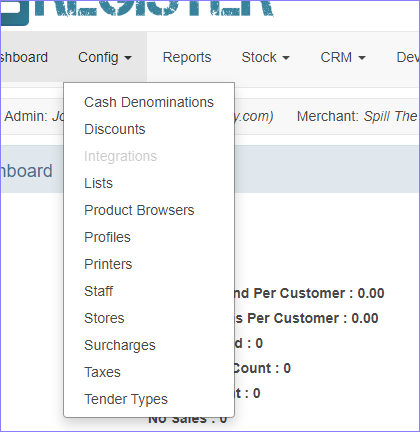
- Click Config
- Click Taxes
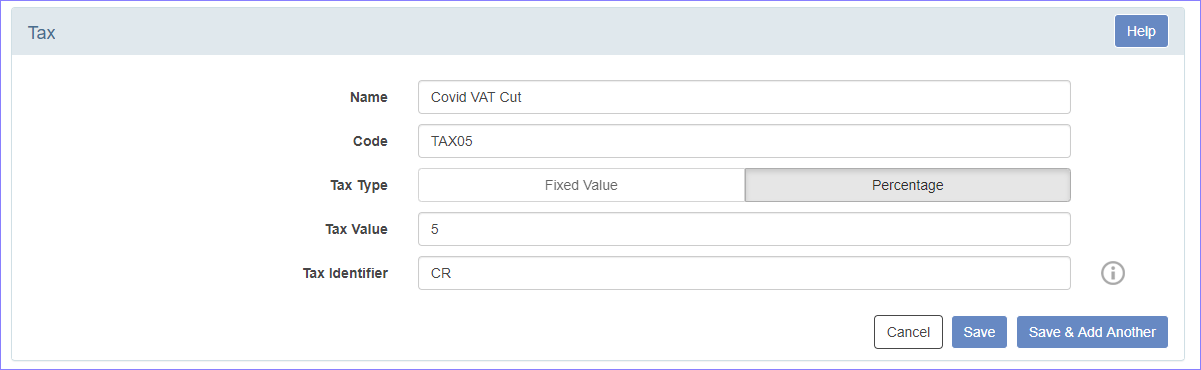
- Click New Tax
- Enter the Name, Code (you can choose this), Tax Value and Tax Identifier (optional)
- Click Save
Updating the Tax applied to Products
You can either update the tax applied to individual products from the Web Portal or if you have a lot of products to update, you may find this quicker using our export / import tools on the Web Portal.
Individually from the Web Portal:
- Login to the Web Portal (https://portal.smartvolution.com/)
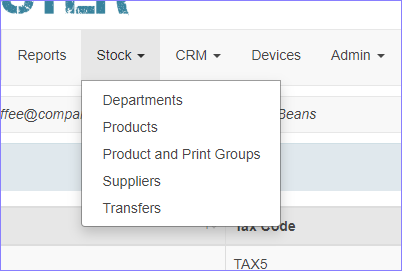
- Click Stock
- Click Products
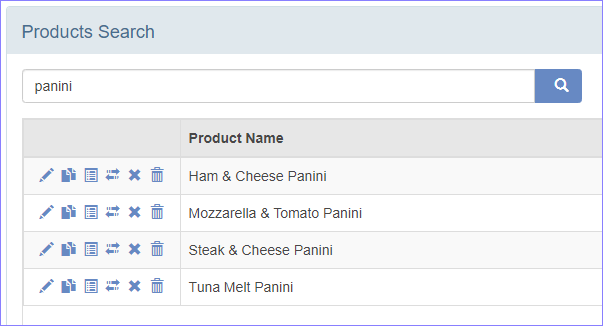
- Search for the appropriate product
- Click the Edit (pen) icon
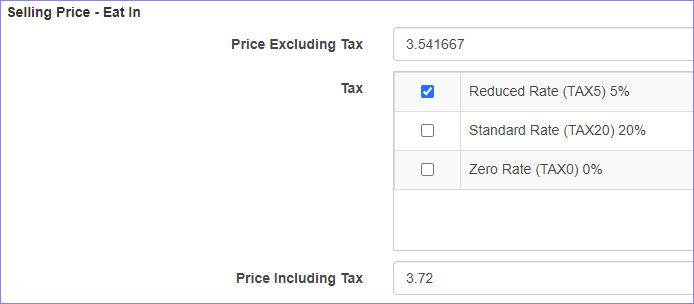
- Untick the existing rate (likely Standard Rate 20%)
- Tick the new rate
- Check the selling price is what you wish or alter it.
- Scroll down and click Save
In bulk from the Web Portal (Using Export / Imports)
- Login to the Web Portal (https://portal.smartvolution.com/)
- Click Stock
- Click Products
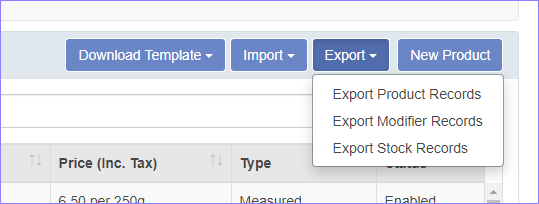
- Click Export
- Click Export Product Records
- Click Export and Download XLS when the file is ready
- Open the downloaded spreadsheet
- Save your spreadsheet with a new name
- Also keep the original sheet as you can re-use this to reset the pricing and Tax in Jan
- Apply the following actions to the applicable products
- Change Import Record (column A) to Yes (for the products you wish to change)
- Update the Price (column M)
- If the Sell Price is Inclusive of Tax (column N = Yes), this is the price the customer will pay for the product regardless of the applied Tax. You can lower the price if you want to pass any savings onto the customer.
- Update the Tax Code (column O)
- Return to the Web Portal
- Click Stock
- Click Products
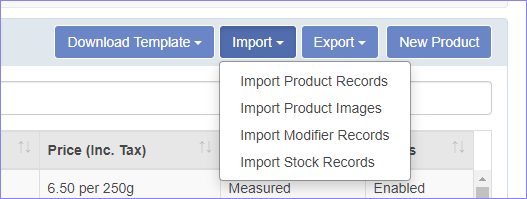
- Click Import
- Click Import Product Records
- Click Press to select file
- Select your new spreadsheet and click open
- Click Import

Update your Registers
After you have finished making your changes, don’t forget to tap the Update Data button on the login screen on all your Register devices to receive the changes.
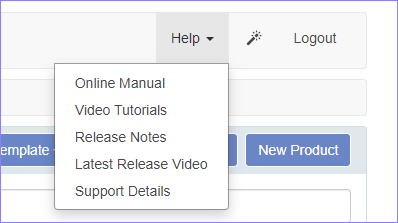
If you have any questions whilst completing the above processes, please check out our help tools within the Web Portal or contact your support provider whose details are available on both the Web Portal and Register Menu.
Helpful Tutorial Video’s:
Register Tutorial #19 – Products Overview – https://youtu.be/y9KfdVvSphw
Register Tutorial #22 – Importing and Exporting Overview – https://youtu.be/XupL9bAxapY
Further reading from GOV.UK and BBC News:
https://www.gov.uk/government/publications/a-plan-for-jobs-documents/a-plan-for-jobs-2020